
Use OnlyFans Tracking Links for direct in-platform attribution and UTM-tagged redirect links to capture platform-level source details in external analytics. Together, these two methods give you a complete picture of which placements actually produce subscribers.
Here’s what you need to do right now:
Three steps to start today:
Pro Tip: Name your OnlyFans Tracking Link to mirror your UTM values (e.g., instagram_bio_spring2026) so you can cross-reference both reports without guesswork.
Consistent UTM naming combined with OnlyFans Tracking Links and a redirect page that fires pixels gives you reliable attribution from ad spend to subscriber revenue across every channel.
| Point | Details |
|---|---|
| Use OnlyFans Tracking Links | Create one named link per placement to get clicks, fans, and revenue data directly inside OnlyFans. |
| Apply consistent UTM naming | Lowercase, hyphens, one name per platform — this prevents report fragmentation from day one. |
| Add a redirect page for GA4 | A redirect page you control fires pixels and records UTMs before sending visitors to OnlyFans. |
| Test every link before publishing | Click each link in incognito and confirm UTM parameters appear in GA4 Realtime within seconds. |
| Only-dreams for done-for-you setup | Only-dreams configures the full tracking stack, including pixels, postbacks, and campaign naming. |
OnlyFans Tracking Links, found under the Campaigns tab in your account, are redirect URLs that open your subscription page and register every click against a named campaign. According to the official OnlyFans Campaigns guide, each link reports clicks, fans acquired, revenue generated, conversion rate, and average revenue per fan.
When to rely on OnlyFans Campaigns:
The main limitation is that OnlyFans pages don’t accept external pixels, so GA4 can’t fire on the subscription confirmation. You get the conversion data inside OnlyFans, but you can’t connect it to a full GA4 session.
Pro Tip: Set a fallback URL on every Tracking Link so paused or expired campaigns redirect visitors to your profile instead of a dead page.
Follow these steps inside your OnlyFans account:
source_medium_campaign — for example, instagram_bio_spring2026.?ref=abc123) that ties every subsequent subscription to that click.Naming tips to keep reports clean:
Pro Tip: Create a separate Tracking Link for every distinct placement — one for your Instagram bio, one for your TikTok bio, one per promoter. Combining placements into a single link hides which source is actually converting.
UTM parameters are tags you append to a URL so GA4 can identify where a visitor came from. Google’s documentation specifies that utm_source, utm_medium, and utm_campaign should always be set for reliable reporting; the remaining parameters add optional granularity.
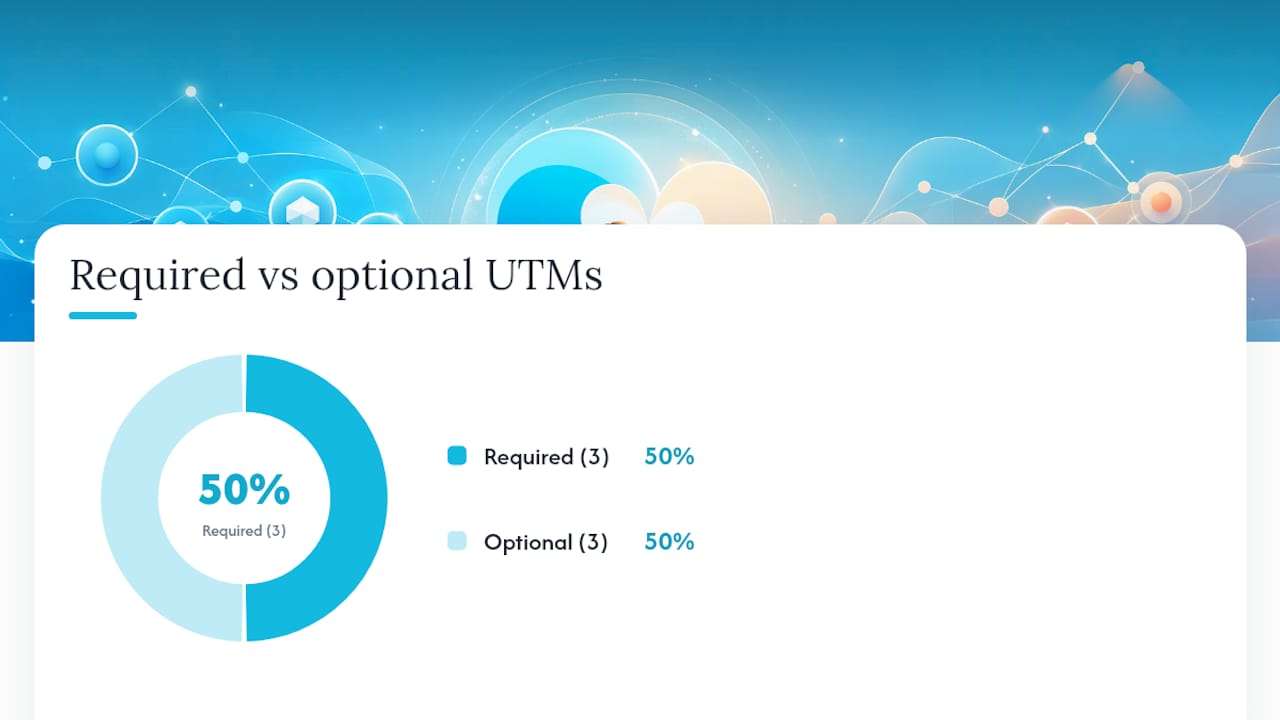
| Parameter | Required? | Example Value | Purpose |
|---|---|---|---|
utm_source |
Yes | instagram |
Identifies the platform or site sending traffic |
utm_medium |
Yes | bio |
Identifies the marketing channel type |
utm_campaign |
Yes | spring2026-sub |
Names the specific campaign or promotion |
utm_content |
Optional | link-v1 |
Differentiates creatives or placements within a campaign |
utm_term |
Optional | fans-offer |
Originally for paid keywords; useful for ad copy variants |
utm_id |
Optional | camp-042 |
Numeric or alphanumeric campaign ID for cross-system matching |
Formatting rules that matter:
Instagram and instagram as two separate sources, which fragments your reports.%20, causing inconsistent data.&, =, or # inside parameter values.? character in a URL. The first parameter uses ?, every subsequent one uses &.Manual format: Take your base URL, add ?, then chain parameters with &.
https://onlyfans.com/yourname?utm_source=instagram&utm_medium=bio&utm_campaign=spring2026-sub
For a redirect page (recommended for GA4 tracking), the base URL is your redirect domain, not the OnlyFans URL directly.
Using Google’s Campaign URL Builder:
utm_content if you’re testing multiple creatives.Additional tools worth using:
Pro Tip: After building a link, paste it into an incognito browser window and check GA4’s Realtime report under Traffic Acquisition. If the source/medium appears correctly, the link is working. If it shows “(direct)/(none),” something in the redirect chain is stripping your UTMs.
Channel-by-channel UTM recommendations:
utm_source=instagram, utm_medium=bio, utm_campaign=your-campaign-nameutm_source=instagram, utm_medium=stories, utm_campaign=your-campaign-nameutm_source=instagram, utm_medium=dm, utm_campaign=your-campaign-nameutm_source=tiktok, utm_medium=bio, utm_campaign=your-campaign-name (see the TikTok promotion guide for platform-specific tips)utm_source=twitter, utm_medium=profile, utm_campaign=your-campaign-nameutm_source=telegram, utm_medium=channel, utm_campaign=your-campaign-nameutm_source=meta or utm_source=tiktok, utm_medium=paid, utm_campaign=your-ad-campaign-nameutm_source=promoter-name, utm_medium=affiliate, utm_campaign=your-campaign-nameFor link-in-bio tools (Linktree, Beacons, or similar), tag the individual button links with UTMs pointing to your redirect page, not the tool’s landing page URL. The redirect page is what fires your pixels and passes UTM data to GA4 before sending the visitor to OnlyFans.
If you’re directing traffic to OnlyFans properties like the OnlyFans store, apply the same UTM logic to those destination URLs.
Inside OnlyFans Campaigns, you’ll see clicks, fans, revenue, conversion rate, and average revenue per fan per tracking link. These numbers are reliable for subscriber attribution because OnlyFans controls the full session from click to subscription.
GA4 is a different story. Because OnlyFans pages don’t accept external pixels, GA4 can only track the session up to the point where the visitor leaves your redirect page. You won’t see a “subscription confirmed” event in GA4 unless you build a server-side postback. What GA4 does give you is channel-level traffic data: which source/medium sent the most visitors, how long they engaged with your redirect page, and which campaigns drove the most outbound clicks.
The practical gap: GA4 shows you traffic quality; OnlyFans Campaigns shows you conversion outcomes. Cross-referencing both by matching campaign names is how you get the full picture. A channel that sends 500 clicks but zero fans in OnlyFans Campaigns is a traffic source worth cutting, regardless of what GA4 says about session duration.
Common attribution failures to plan for:
fbclid and TikTok’s ttclid are appended automatically to ad destination URLs. A server-side tracker can capture these and fire postbacks, giving ad platforms the conversion signal they need to optimize delivery.Consistent naming solves the majority of fragmentation problems. A simple set of rules applied from day one prevents the situation where Instagram, instagram, IG, and insta all appear as separate sources in GA4.
Rules to follow:
spring-2026 not spring_2026).instagram, tiktok, twitter, telegram.utm_campaign when running time-limited promotions: spring2026-sub, camp-042-may.utm_source, utm_medium, utm_campaign, created by, start date, end date, status, and notes.Pro Tip: Use a UTM builder with validation (like devkraken’s UTM Builder) as your team’s standard link-creation tool. It flags uppercase input and whitespace before the link goes live, which prevents the fragmentation that makes reports unreadable.
Run this diagnostic when UTM data isn’t showing up in GA4:
? by default.Common causes and fixes:
Instagram vs. instagram before links go live.Use these as starting points. Replace your-campaign with your actual campaign name.
https://yourredirect.com/?utm_source=instagram&utm_medium=bio&utm_campaign=your-campaignhttps://yourredirect.com/?utm_source=tiktok&utm_medium=bio&utm_campaign=your-campaignhttps://yourredirect.com/?utm_source=twitter&utm_medium=profile&utm_campaign=your-campaignhttps://yourredirect.com/?utm_source=telegram&utm_medium=channel&utm_campaign=your-campaignhttps://yourredirect.com/?utm_source=instagram&utm_medium=dm&utm_campaign=your-campaign&utm_content=dm-v1https://yourredirect.com/?utm_source=meta&utm_medium=paid&utm_campaign=your-campaign&utm_content=creative-v1https://yourredirect.com/?utm_source=promoter-jane&utm_medium=affiliate&utm_campaign=your-campaignWhen to shorten with Bitly: Use it for public-facing placements (bio links, printed assets, Telegram posts) where a long URL looks unprofessional. Skip the shortener for paid ad destination URLs — the extra redirect adds latency and occasionally causes tracking issues with ad platform click IDs.
Pairing example: your Meta ad destination URL carries UTMs and points to your redirect page. The redirect page fires your Meta pixel and then forwards the visitor to your OnlyFans Tracking Link. OnlyFans registers the subscription; GA4 registers the session; Meta gets its postback. That’s full attribution from ad spend to subscriber revenue.
Pro Tip: According to NullMark’s creator tracking guide, most creators only need the first three UTM parameters to get meaningful data. Start with utm_source, utm_medium, and utm_campaign — add utm_content only when you’re actively A/B testing creatives.
The core challenge: OnlyFans pages don’t accept external pixels, so you can’t fire a GA4 conversion event on the subscription page. The workaround is a redirect page you control.
Here’s the step-by-step flow:
fbclid, ttclid) if present and passes them to a server-side tracker.OnlyTraffic’s server-side tracking links handle steps 3–6 automatically, capturing click metadata and supporting postbacks for lifetime revenue attribution.
Agency naming tip: Name your GA4 campaigns and your OnlyFans Tracking Links identically (e.g.,
spring2026-sub-instagram-bio). When you pull reports from both platforms, matching names let you cross-reference traffic quality against actual subscriber revenue in under a minute.
Pro Tip: Use NullMark’s guide on tracking conversions from social media bio links as a reference for setting up the redirect page layer. It covers pixel firing, UTM preservation, and the specific redirect behaviors that matter for OnlyFans traffic.
Most creators who come to us have the same problem: three different names for Instagram in their UTM reports, no redirect page, and no way to tell which promoter is actually driving revenue. The fix isn’t complicated, but it has to happen before any other optimization.
Our first move is always to stop the fragmentation. That means picking one canonical name per platform, setting up one redirect that fires pixels, and creating a shared link spreadsheet the whole team uses. That alone surfaces the real picture: which channel sends subscribers with the highest lifetime value, not just the most clicks.
The role of analytics in creator management matters more than most creators realize early on. Once you can see LTV by source, you stop spending time on channels that produce low-value fans and double down on the ones that produce subscribers who stay and spend. Full postback implementation and cohort LTV analysis come later, after the naming and redirect foundation is solid.
Tracking setup takes time you’d rather spend creating content. Only-dreams configures your redirect page, pixel integration, postback connections, and OnlyFans Tracking Link naming conventions as part of our account management service. You get clean, cross-referenced reports from day one without building the infrastructure yourself.
Creators working with Only-dreams skip the trial-and-error phase entirely. Our team sets up the full attribution stack, manages campaign naming across every channel, and delivers regular performance reports tied to actual subscriber revenue. If you’re ready to know exactly which platforms are growing your income, book a free consultation with our team today.